Packages and Versions
Within an application package (objects housed within the source application), you can create a version (snapshot) that contains all application content and dependencies. As the source application changes over time, you can use the same package to create subsequent versions.
You can use packages and versions to back up source applications and deploy them later.
Note: Packages do not contain the actual data associated with any datasets from the source application. Instead, the data is loaded when the objects are deployed to the target application after the deployment job completes.
Before You Begin
Verify that the correct source and target servers have been created.
Create a Package
-
Select the Content Deployment icon in the left navigation pane to display the Packages tab.
-
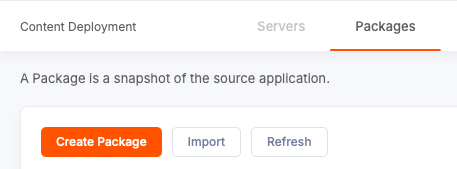
Select Create Package.
-
On the Package Description page, enter a package name and description in the fields provided.
-
In the Content Source section, select a source server from the dropdown list.
-
Select an application owner from the dropdown list of users with Composer rights on the server. This user owns the application being included in the package.
-
From the Source Application dropdown list, select an application to include in the package. The list of available applications is filtered by application owner.
-
Select Create New Version.
The table updates to display the new version entry.
Manage Packages Containing Validation Errors
In Qrvey 9.3.3, you can create Content Deployment packages when validation errors are present, allowing administrators to proceed with deploying valid content. Users receive a warning message if the package contains broken assets. They can then choose to keep the package with errors or delete it. Packages containing validation errors are marked in the package version list, and any assets that failed validation are flagged in the deployment definition and cannot be selected for deployment.
Edit a Package
To edit the details of an existing package, select its corresponding options menu from the package list and then select Edit.
Delete a Package
To delete an existing package, select its corresponding options menu from the package list and then select Delete.
Note: You cannot delete a package with an associated deployment definition.
Create a Version
- Select the Content Deployment icon in the left navigation pane to display the Packages tab.
- Select a package from the list to open its Package Description page.
- Select Create New Version.
- In the Package Version dialog, enter a version name and then select OK. The Package Versions table updates to display the new version entry.
Edit a Version
To edit the name of an existing version, select its corresponding options menu from the package versions list and then select Edit.
Export a Version
To export a package version to a ZIP file, select its corresponding options menu from the package versions list and then select Export. The system downloads the package containing application information as a ZIP file to the default download location.
Import a Package
To import a package exported with Content Deployment, select the Import button next to the Create Package button. Select a Qrvey package ZIP file and then select Import. The new package appears in the packages list.
Export and Import Package Benefits
When you have created a package in one environment (such as staging), you can use these features to add the package to another environment (such as production). You can export a ZIP file from one environment and then import the file into the other environment.
The export creates creates a copy of a Qrvey application. If the original application or its package has been deleted, you can restore the package from its ZIP file and re-install.
Delete a Version
To delete an existing version, select its corresponding options menu from the package versions list and then select Delete.
Note: You cannot delete a package version if a deployment definition is associated with the version.